How to Convert YouTube Video to Audio: 5 Easy Methods (2026)
Want to convert a YouTube video to audio? Compare 5 simple methods, plus tips on formats, quality and turning that audio into new video content.
We’ve just built the most complete FREE resource to leverage AI avatars in your business. We’ve centralized 50 use cases across 4 categories (Personal Branding, Marketing and Sales, Internal and Enterprise, and Educational and side-hustles). You can access it here NOW. Enjoy :)
Why Do People Convert YouTube Video to Audio Files?
There are lots of reasons you might want to convert a YouTube video to audio. Some people also want to extract YouTube audio for offline listening, content inspiration or educational reference. Others export audio so they can repurpose it into another format, such as converting a video into a podcast or creating clips for social media.
AI transcription and repurposing tools now make it simple to turn one audio export into a podcast episode, a set of social clips and a written summary, all from the same source file.
In this article, we’ll show you how to convert YouTube video to audio to open up new content strategies and streamline your workflows.
How Easy is it to Convert YouTube Video to Audio?
Converting YouTube video to audio has never been easier. Using a simple online tool, a mobile browser or a media player like VLC, you can export audio in just a few minutes. This way you can repurpose your top performing videos into different formats, or tweak them for different audiences.
For example, if you shared an interview video on YouTube, you might also want to make this available in podcast format for Spotify or Apple Podcast listeners, or through a subscriber platform like Patreon.
You may also wish to cut the audio down into short clips and repurpose it into videos for your Instagram and TikTok accounts to drive listeners to your podcast or main YouTube channel.
Whatever the reason for converting YouTube video to audio, the process is straightforward once you pick the right tool for the job and know what to check before you download.
How to Convert YouTube Video to Audio: 5 Easy Methods
Converting YouTube Video to Audio Using 4K Download
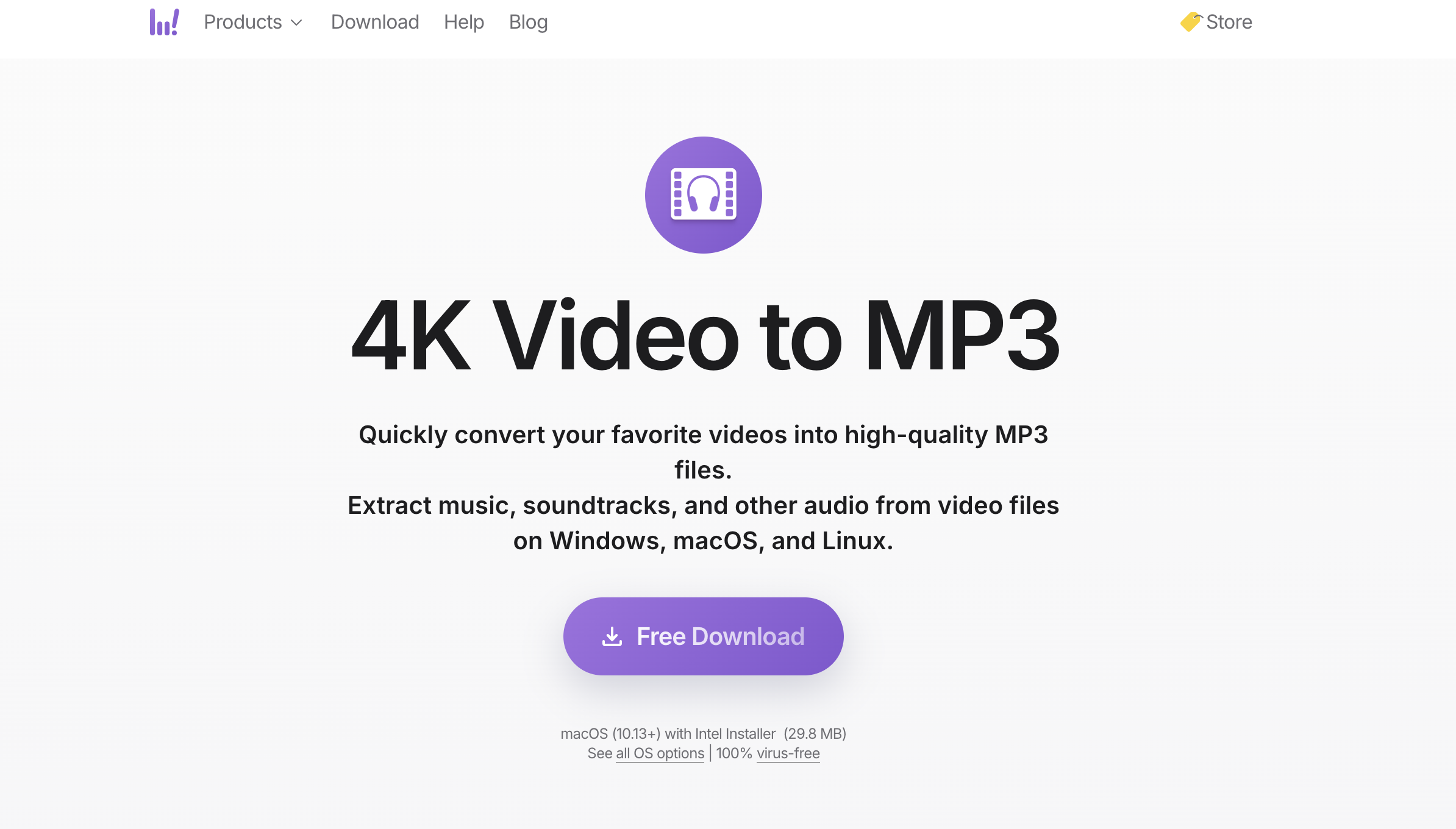
To convert YouTube video to audio using 4K Download, you first need to download the desktop tool for Windows or MacOS.
You don’t need to pay a subscription fee, and you should be able to upload your video for MP3, M4A or OGG extraction in just a few clicks.
There is also an option to batch download entire playlists and channels with one click. Downloading private playlists requires a premium license.
Using YT-DLP (Command Line Power Users)
Converting YouTube video to audio using YT-DLP is completely free. All you need to do is run this command in your terminal:
yt-dlp -x --audio-format mp3 "VIDEO_URL"
This command uses the -x flag to extract audio and --audio-format mp3 to specify the output format. For best results, make sure FFmpeg is installed, as YT-DLP uses it for post-processing tasks like format conversion.
This method is often preferred by developers or content creators with large content libraries. It can also be used to build automated content workflows in Python. However, it requires basic terminal skills and is not for beginners.
Using An Online Video Converter
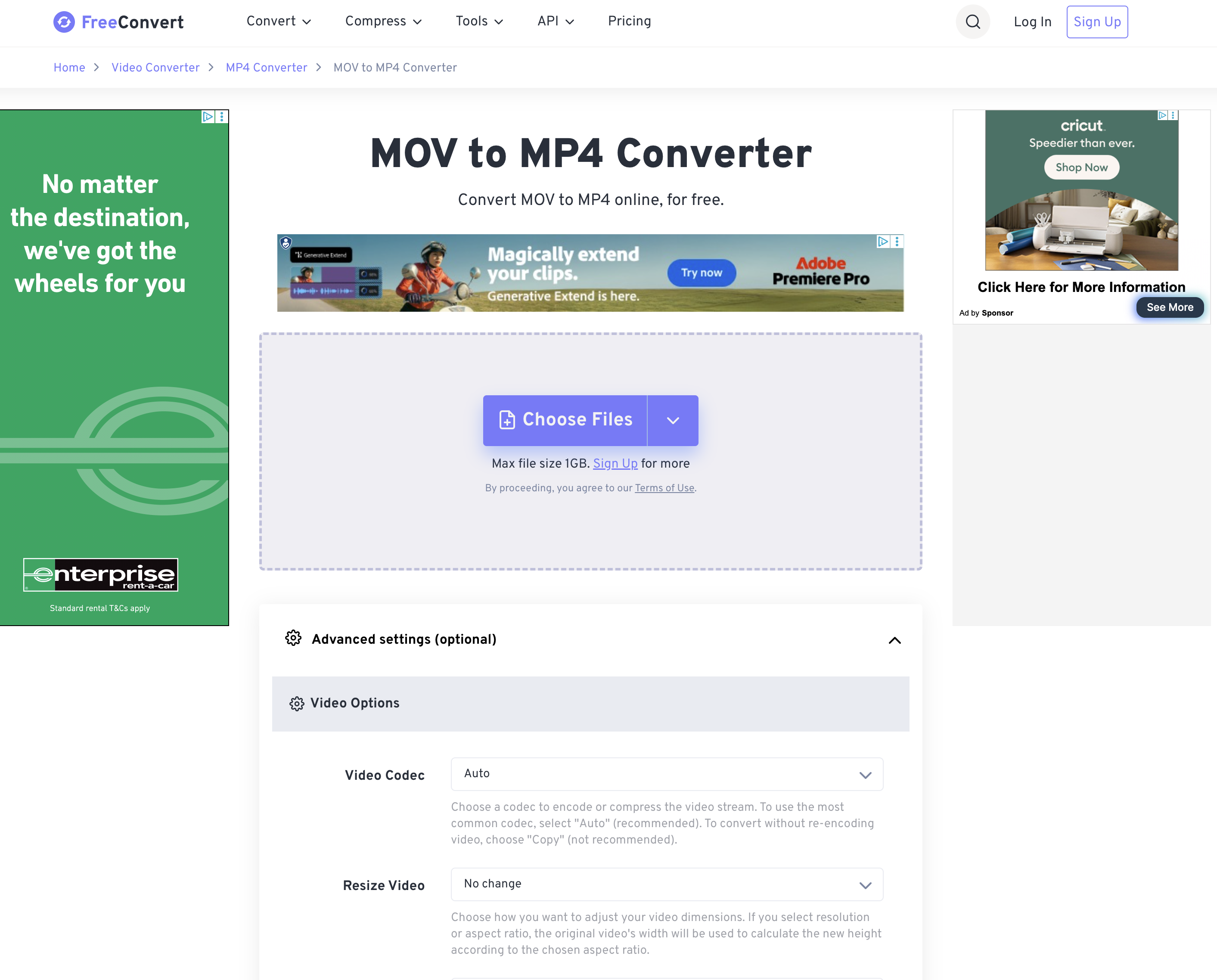
Online video converters are fast and easy to use. All you need to do is paste in your video link, and you can download the audio file directly.
You don’t need to install anything, and it’s accessible and easy to use. This is a good method for one off tasks, but it doesn’t support longer videos or batch processing well. Some online video converters carry ads or bundled software, so only use sites you trust and steer clear of anything that asks you to install a browser extension to “finish” the download.
Using VLC Media Player
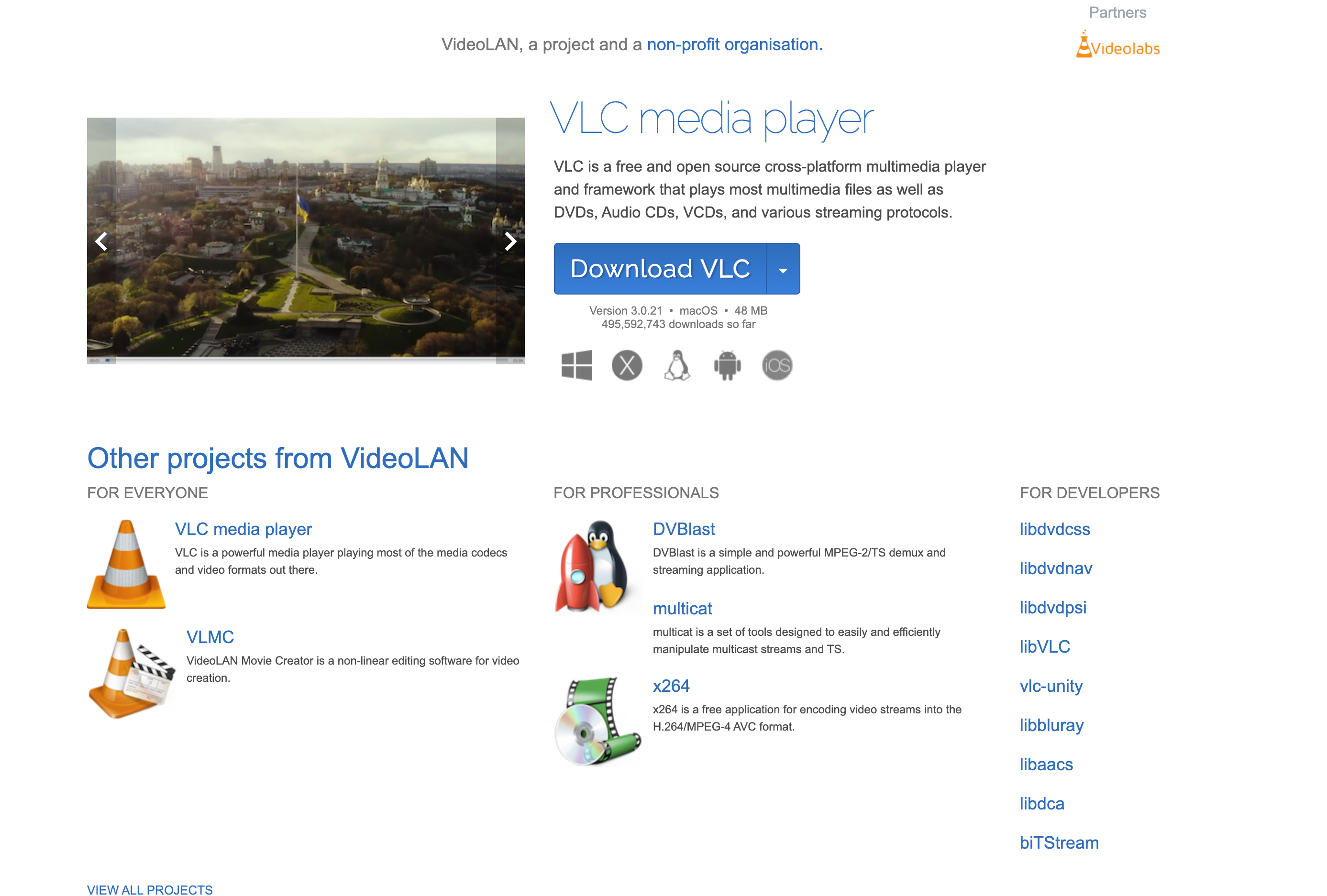
If you want to convert a YouTube video to audio quickly and easily, your best bet is to use a media player like VLC from VideoLAN.
This is a great fallback tool to use if you already have the video file on your computer or laptop. It can also be used to trim audio or select specific timeframes to download. VLC Media Player is completely free and supports almost every format.
Converting YouTube Video to Audio on Mobile (Android and iPhone)
If you’re working from a phone rather than a desktop, the simplest route is the same online converter method above, run in your phone’s browser: paste the video link, choose an audio format, and save the file to your device or cloud storage. Google Play and Apple’s App Store both restrict apps built specifically to download or convert YouTube content, so dedicated YouTube to audio apps are rare on official app stores and get pulled regularly. A browser based converter, or transferring a file you already own from a desktop tool, stays on the safer and more reliable side of that restriction.
Choosing the Right Audio Format and Quality
The tool matters less than the format and bitrate you export at, and this is the step most guides skip.
- MP3 is the safest default. It plays on almost every device, app and podcast host, and keeps file sizes manageable.
- WAV is uncompressed and best if you plan to edit the audio further, but the files are large.
- AAC or M4A are good middle ground formats, especially if your workflow is built around Apple devices.
On bitrate, 128 kbps is the low end and fine for casual voice notes, 192 kbps is a solid baseline for spoken word content like interviews and podcasts, and 320 kbps is worth using if the source video has music you care about. Before you publish or repurpose anything, play the exported file back with headphones and check for muffled audio, clipping or dropouts, and keep a copy of the original video so you can re export at a different quality if you need to.
Is It Legal to Convert a YouTube Video to Audio?
This is worth answering honestly before you build a workflow around it. YouTube’s terms of service do not permit downloading video or audio unless YouTube itself provides a download option, which puts most third party converters in a grey area rather than a clearly sanctioned one.
In practice, converting is on solid ground when you own the content, have the creator’s permission, the video is Creative Commons licensed, or the material is in the public domain. It gets riskier when the audio is copyrighted music: downloading that for personal use through an unofficial tool can breach copyright in most countries unless you go through a licensed service. Fair use may cover commentary, critique or parody, but it is not guaranteed and does not stretch to cover general personal listening.
The safest rule of thumb is to check who owns the audio before you convert it, especially if you plan to publish or monetize what you make with it. We go deeper on the specific rules in our guide to downloading YouTube audio legally.
YouTube Video to Audio Conversions: Practical Use Cases
In addition to creating podcast versions of video interviews, you might also want to convert YouTube video to audio for the following use cases:
Language Learning and Study
You can download audio files of videos for immersive learning, or to listen to while you’re commuting or on a long flight. Looping the same 5 to 10 minute segment a few times, paired with a transcription tool, is a language learning technique that works just as well on a downloaded YouTube audio file as it does on a purchased course.
Content Archiving and Inspiration
Extracting audio from long interviews or lectures makes them far easier to skim back through later, since most transcription and note taking tools handle a 30 minute audio file better than they handle the same content as video. That gives you an easy way to archive material for later reference or mine it for content ideas.
Script Analysis
By converting a YouTube video to audio, you’ll also be able to transcribe extracted content to study its tone, delivery and structure, down to how a 60 second hook is paced against a longer explanation. This is valuable for creators who want to reverse engineer script delivery, and a transcript is also easier to feed into an AI agent for reformatting or rescripting than a video file is.
How to Repurpose Audio with AI Video
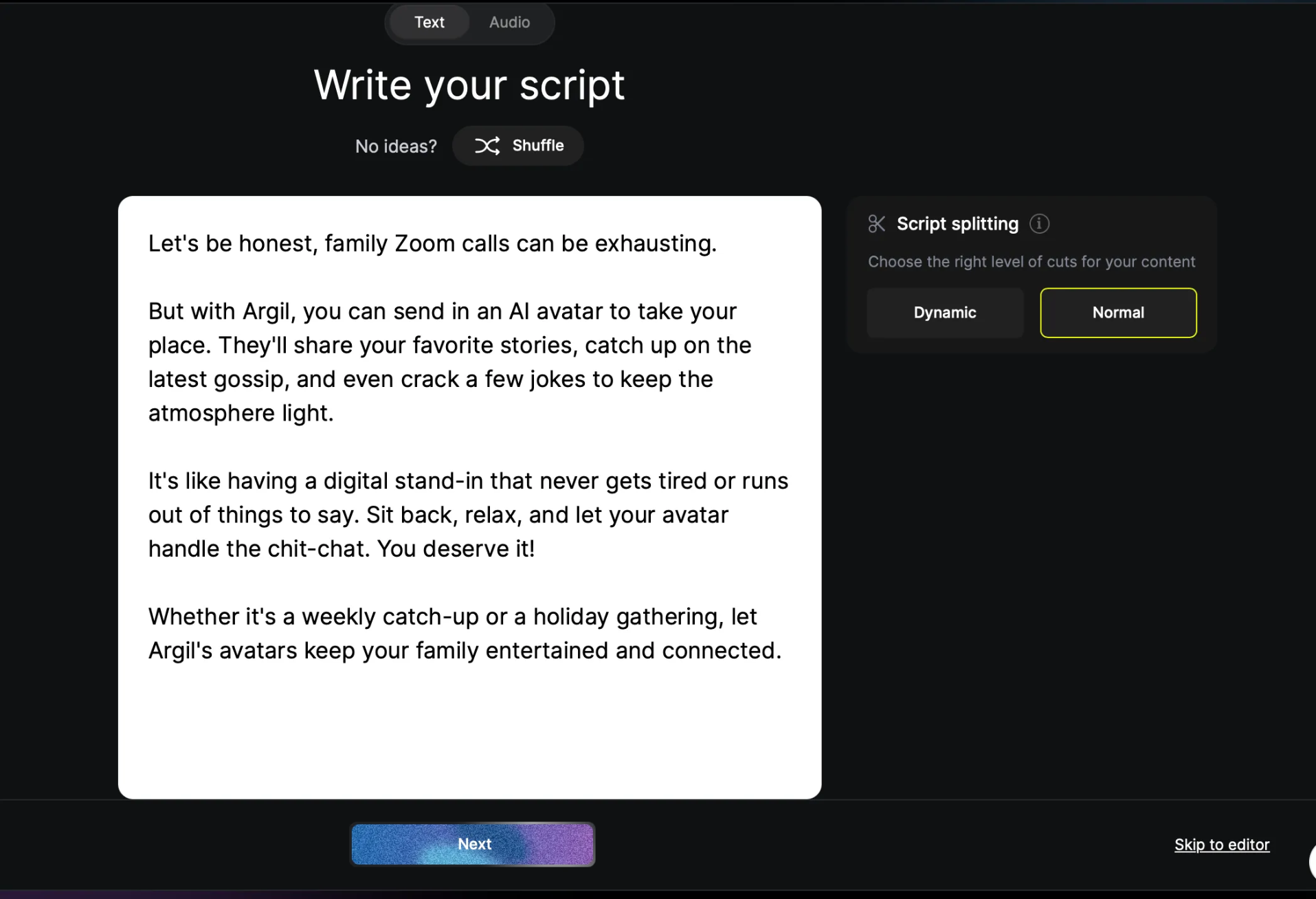
Audio files are static and can be dull unless paired with video. Argil solves that by turning your YouTube content into dozens of short, shareable clips through a fully automated workflow: it finds the most engaging segments and pairs them with B-roll, visual transitions, background music and captions, so you go from raw audio to publish ready clips without sitting in an editor.
You can share clips across Instagram, TikTok, LinkedIn and YouTube Shorts, and Argil optimizes each one for its platform and algorithm. It also learns from your performance data, so you can A/B test different cuts and see what actually keeps people watching.
You can also repurpose content into different languages. If you film a video or podcast in English, Argil can recreate this in up to 50 different languages and dialects, allowing you to expand globally and meet new audiences. If you’d rather keep the output as video instead of audio, our guide on how to convert YouTube videos to MP4 and translate them into new languages covers that workflow step by step. With this approach, you could launch entire regional YouTube channels in another language without having to reshoot or manually translate your content.
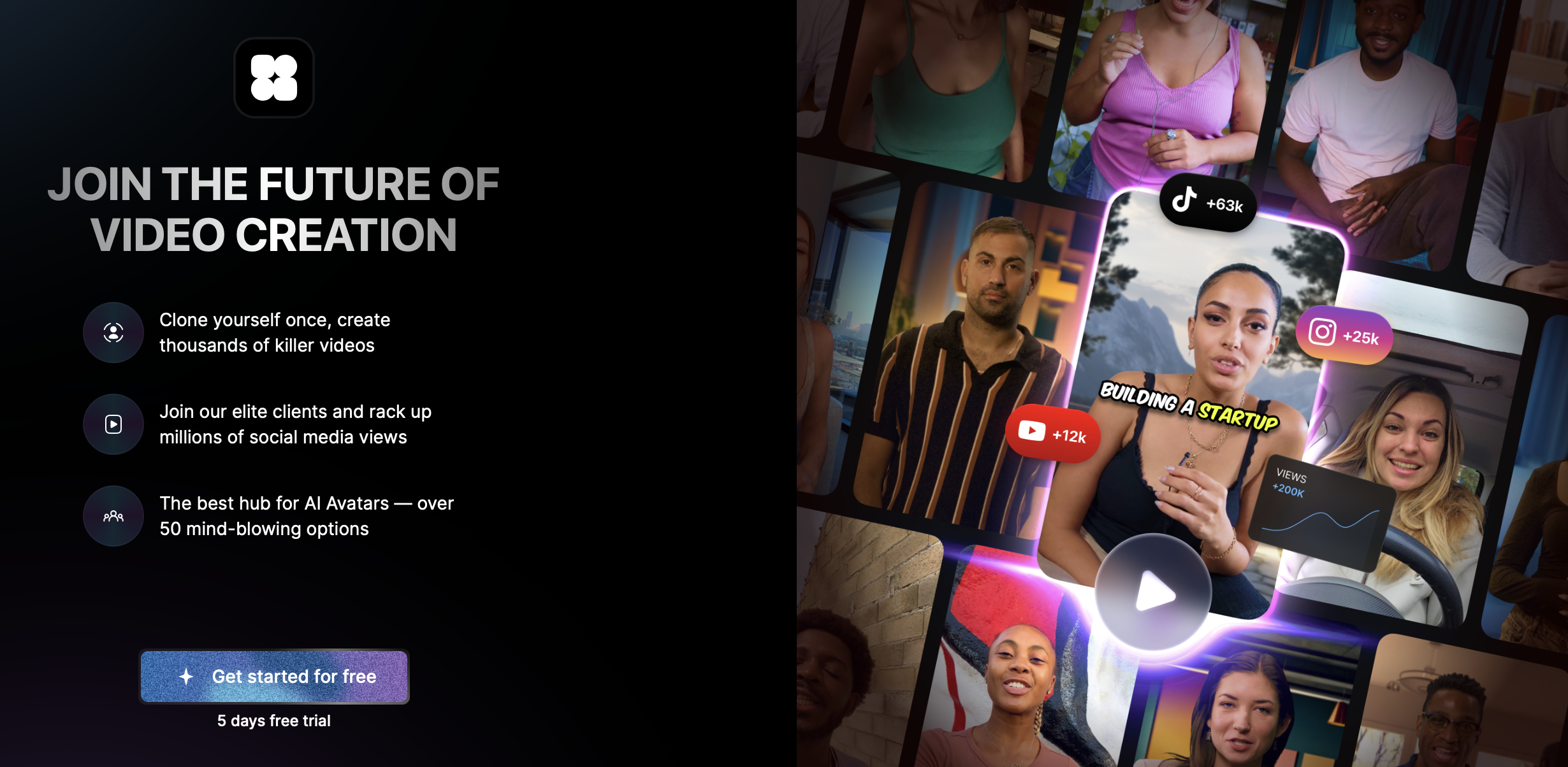
Try Argil for Free
Fed up with dull, static content? Want to move on from manually converting YouTube video to audio and spending hours on editing? Take your repurposing to the next level with Argil.
Sign up today and enjoy a free trial, where you can test all of our editing tools and features, including AI clones and avatars, text to video conversion and the full product walkthrough.